10 min read
Add rental products
Build your catalogue with pricing, images, inventory tracking, and optional variants.
- 1
Open the Products area
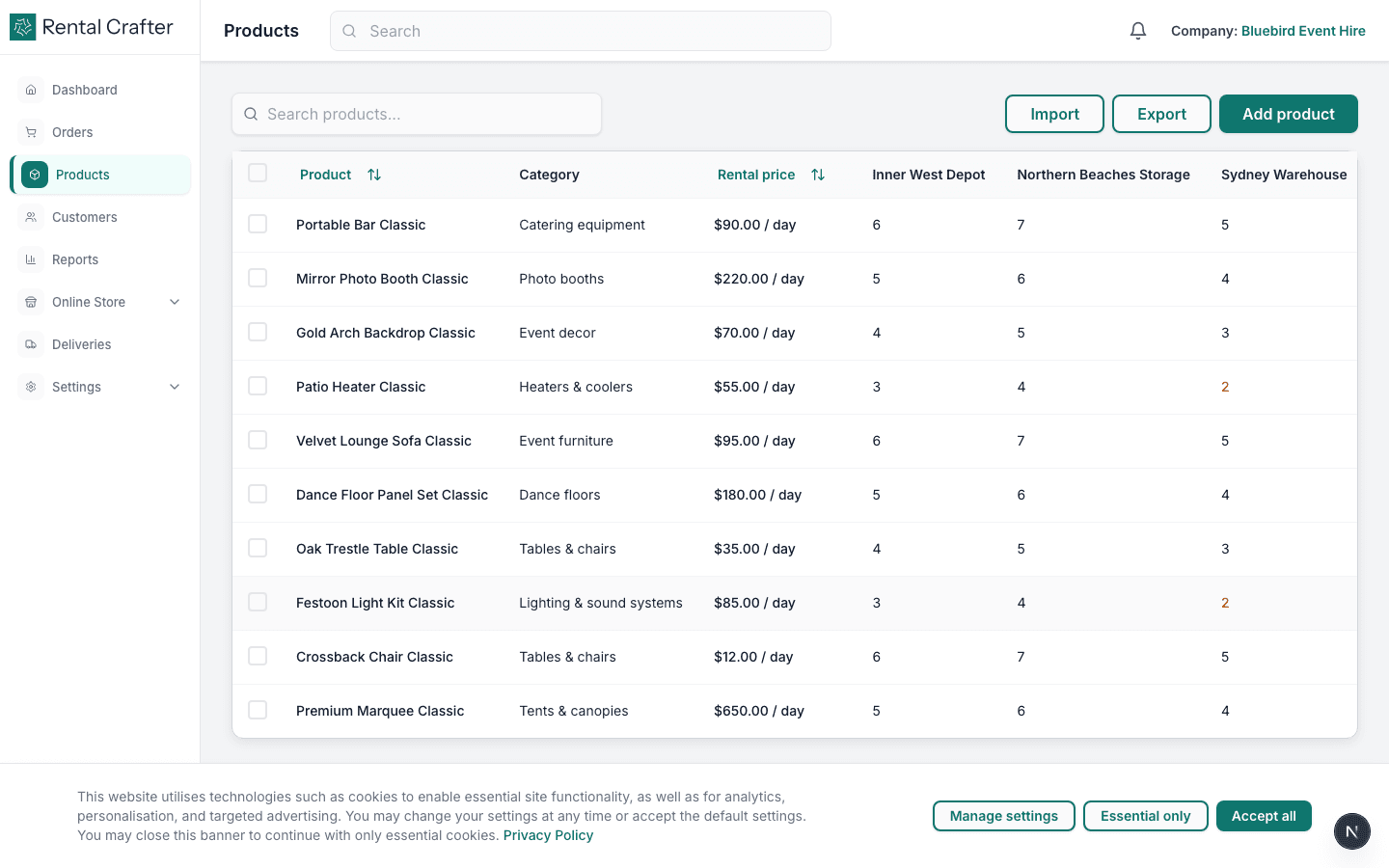
From the sidebar, click Products. You will see your catalogue list (empty at first). Click Add product or go directly to /products/new.
- 2
Enter product details
Give the item a clear name customers will recognise. Choose a category, add a description, and upload at least one photo. Good photos significantly improve online store conversion.
Tip: Use consistent naming — e.g. "6ft Banquet Table" rather than internal codes only.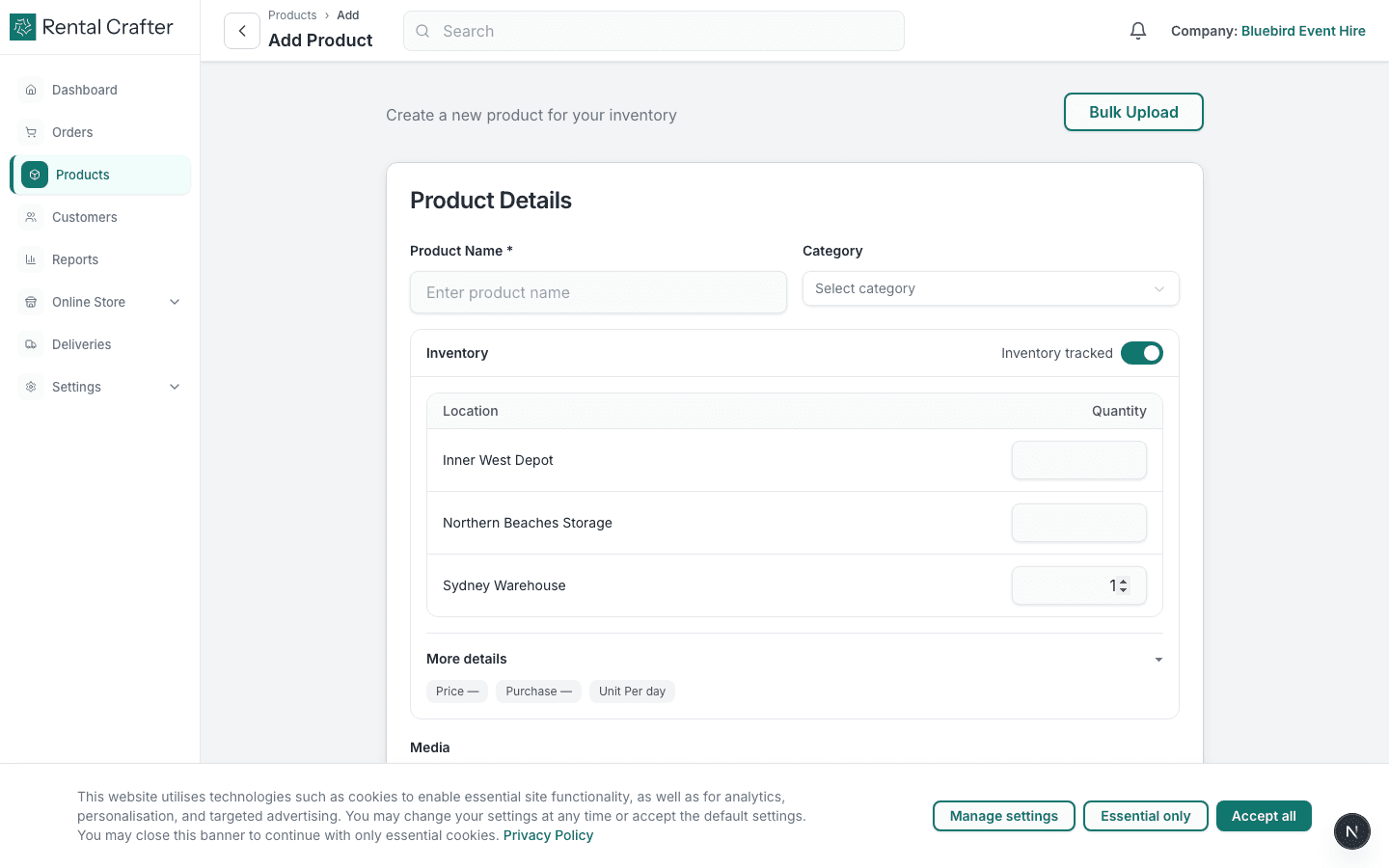
- 3
Set rental pricing
Enter your rental rate and choose the pricing unit: per day, hour, week, or month. Optionally add a purchase price for ROI reporting. Toggle inventory tracking if you have a fixed quantity to rent out.
Tip: Start with per-day pricing if unsure — you can add more units later. - 4
Save and verify availability
Save the product. It now appears in your catalogue and can be added to orders. If inventory tracking is on, RentalCrafter blocks double-booking when quantity is exhausted.
Troubleshooting
My product does not appear on the online store.
Check Online Store settings — the store must be published. Also confirm the product is not archived and your plan includes the online store feature.
Related guides
Need hands-on help?
Email info@rentalcrafter.com or open a support ticket from Help & Support in your dashboard.