12 min read
Create and manage orders
Book rentals, send contracts for signature, collect deposits, and track fulfilment.
- 1
Start a new order
Go to Orders → New order. Select a customer (or create one inline), pick rental start and end dates, then add products. RentalCrafter checks availability as you build the order and warns you about conflicts.
Tip: Date conflicts? Check if another order holds the same items or if inventory quantity is too low.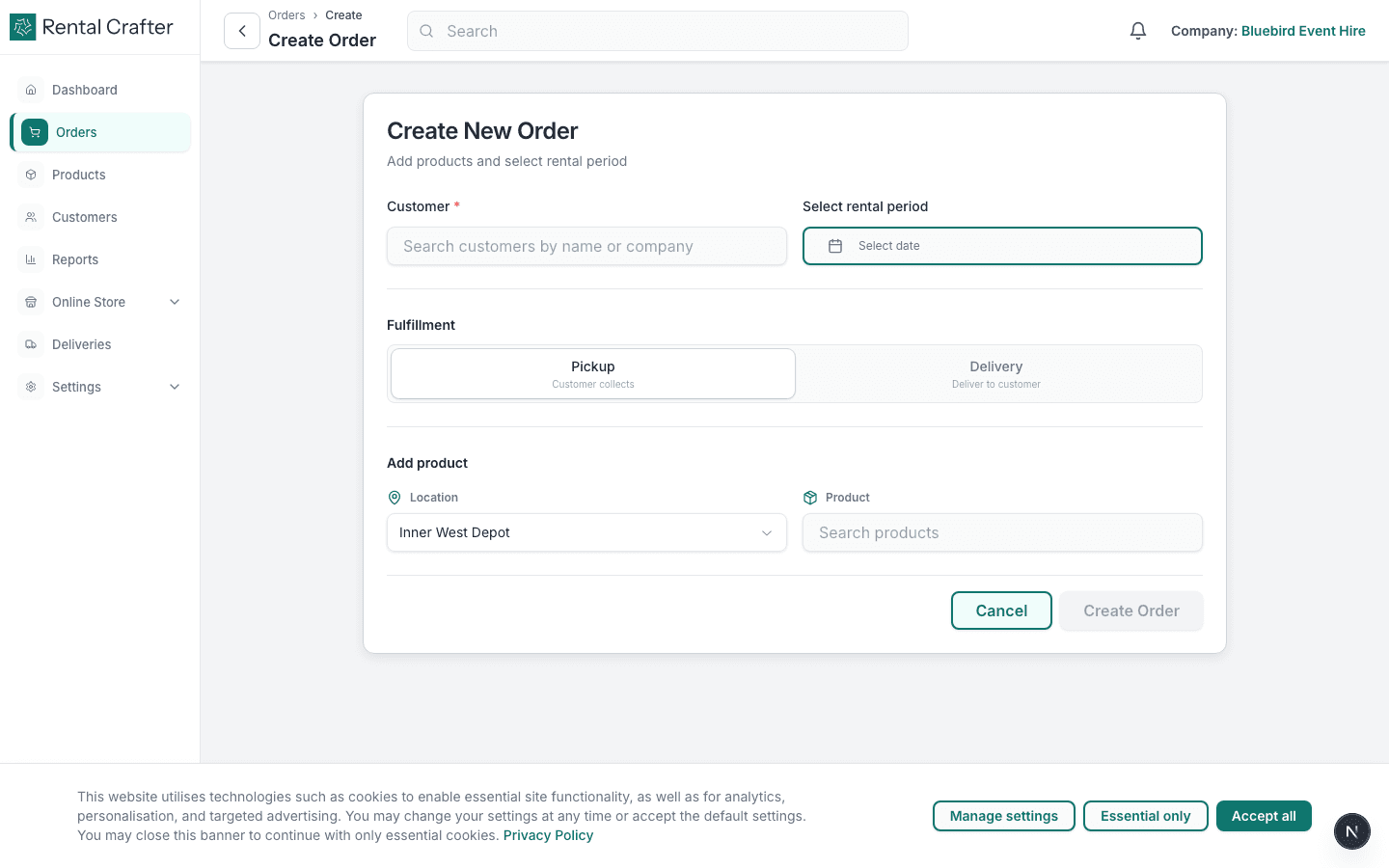
- 2
Review totals and workflow
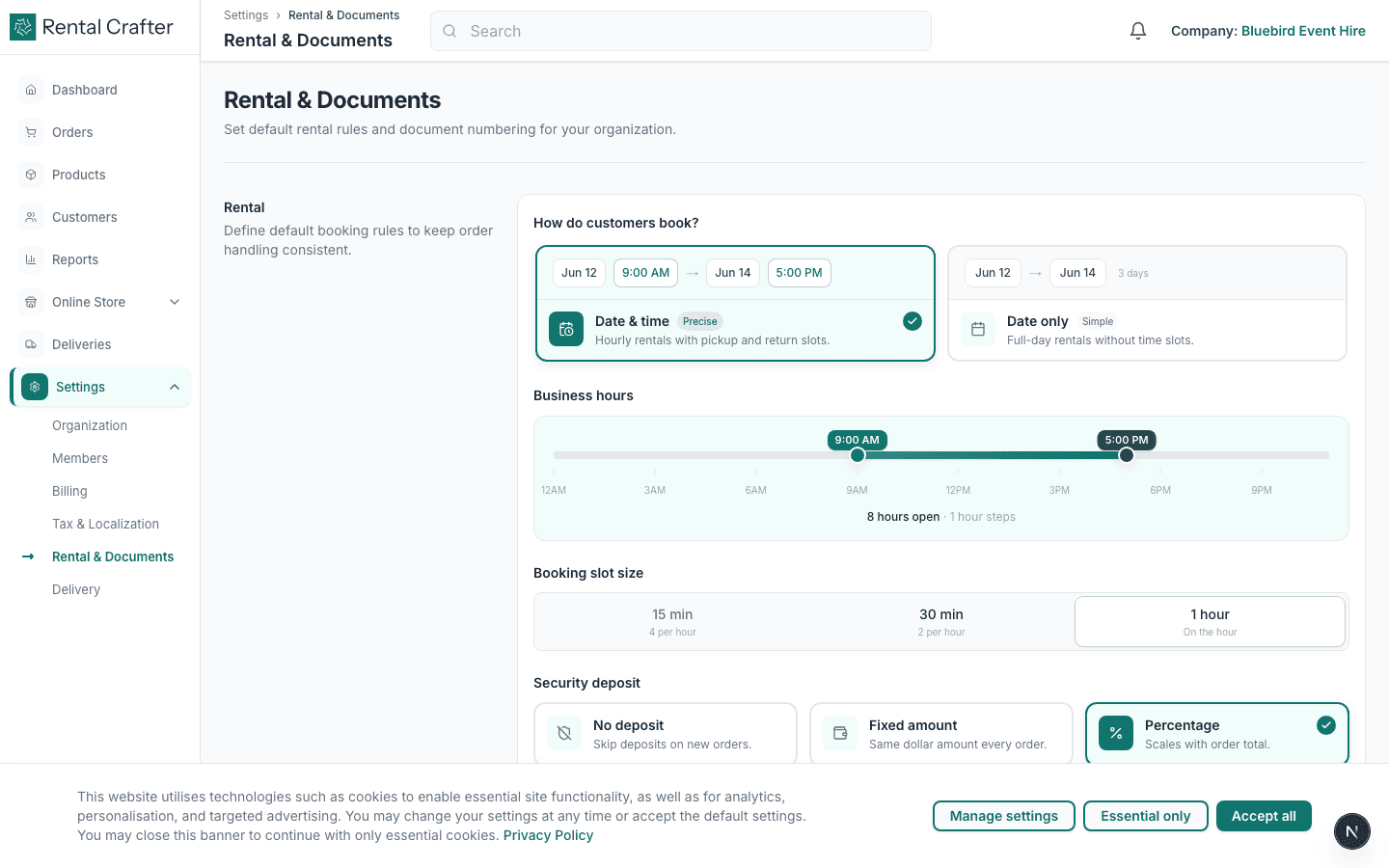
The order summary shows line items, tax, and total. Your organisation's workflow settings (Settings → Rental & Documents) control whether signature, payment, or delivery steps are required before the rental is confirmed.
- 3
Send for signature
If signatures are enabled, open the order and send the contract link. The customer receives an email with a secure signing page. Once signed, the agreement is stored on the order with a timestamp and audit trail.
Tip: Chase unsigned contracts from the order detail page — you can copy the signing link directly.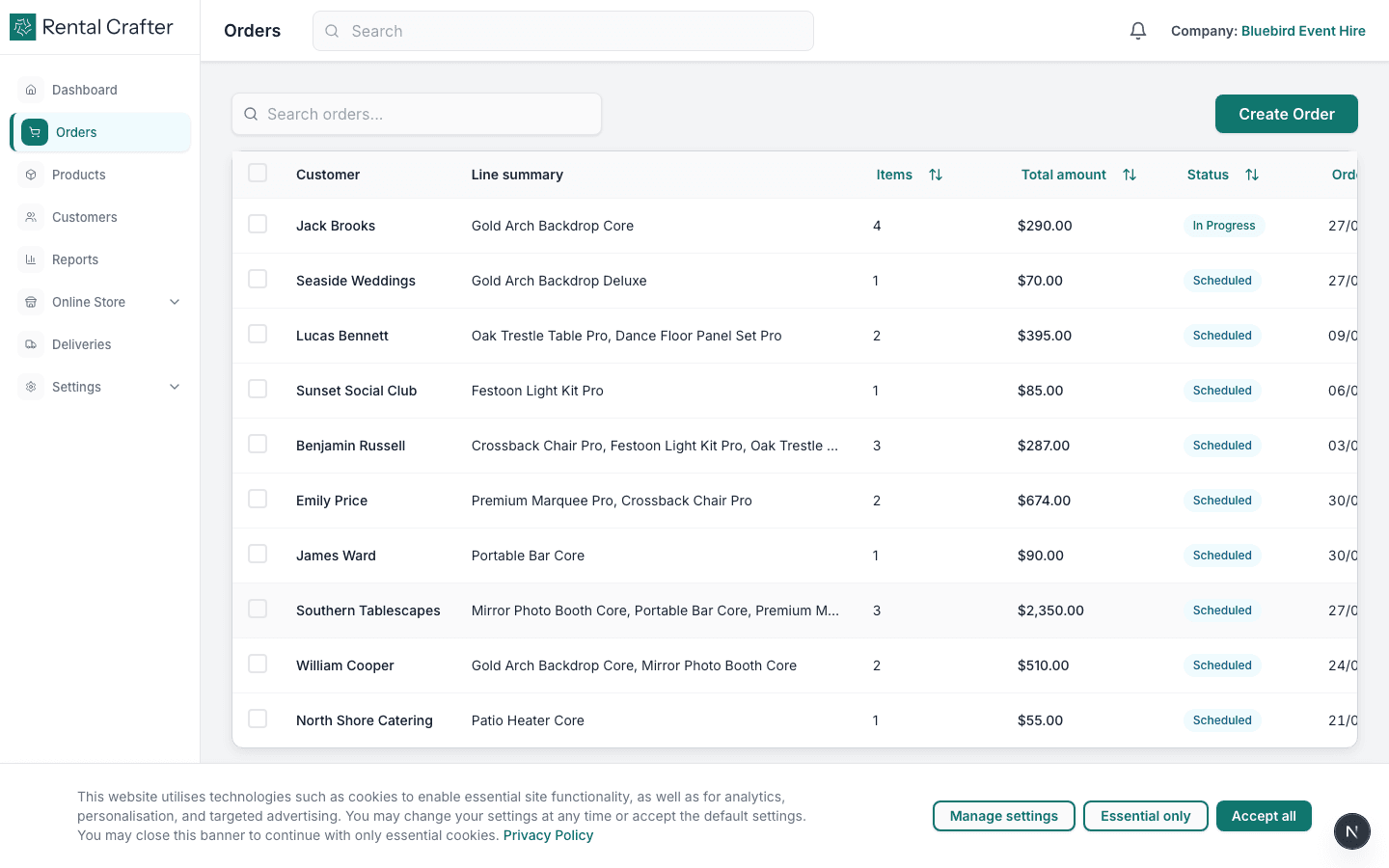
- 4
Collect payment
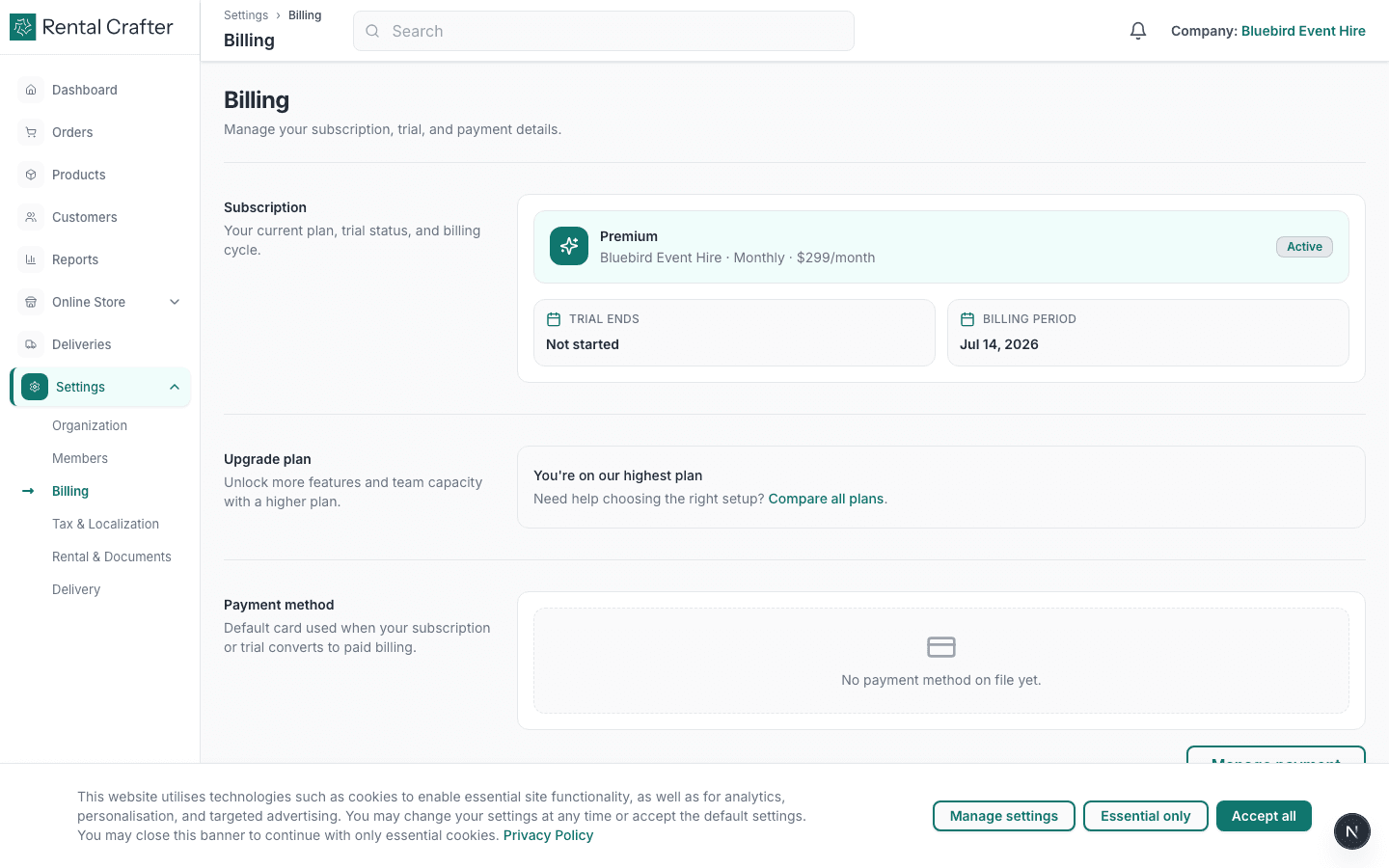
Share a checkout link for deposits or the full balance. Payment status updates on the order when Stripe confirms the transaction. Stripe must be connected under Settings → Billing first.
- 5
Plan deliveries and pickups
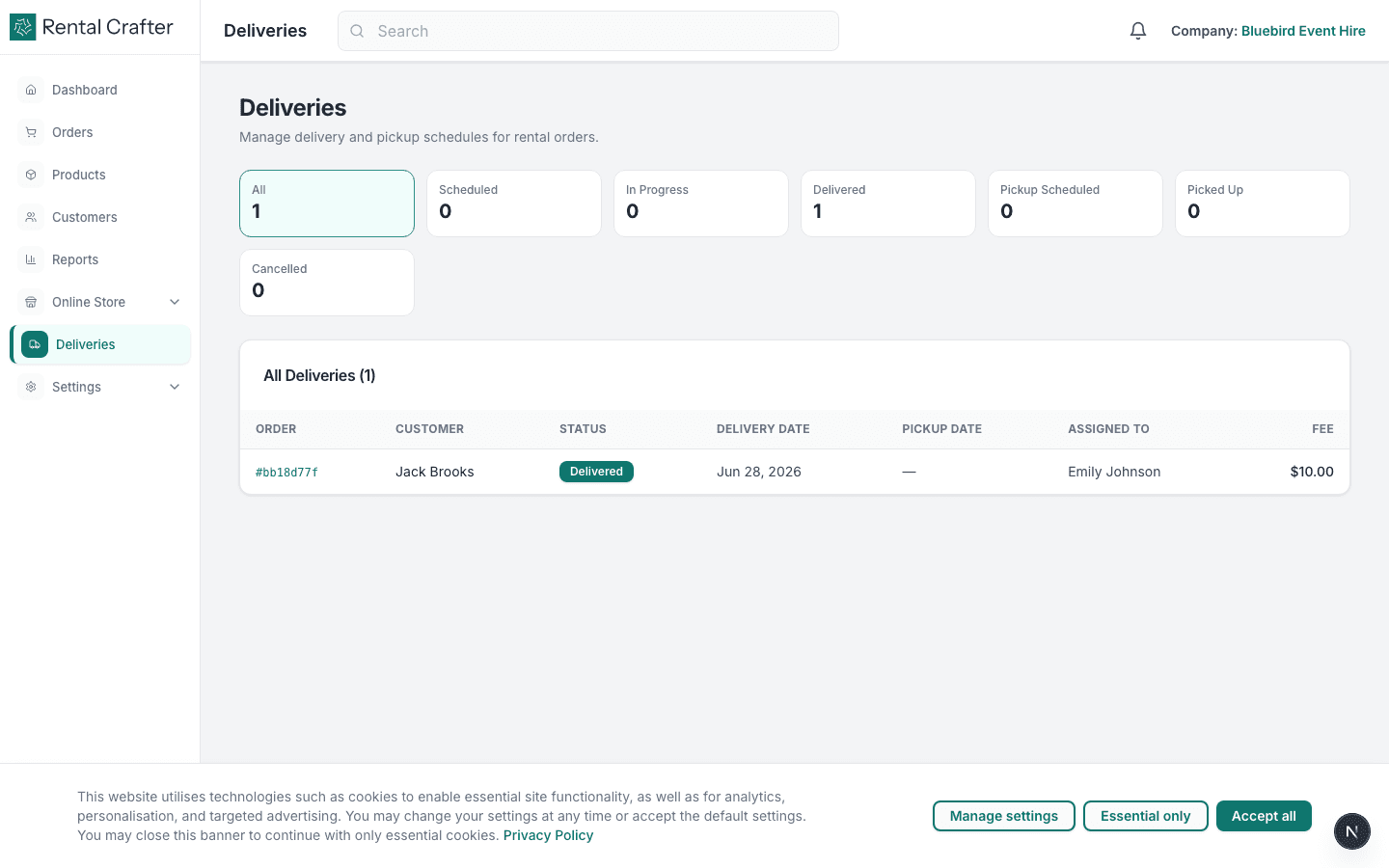
If your business delivers, use the Deliveries view to see scheduled drop-offs and collections. Configure zones and rules under Settings → Delivery.
Troubleshooting
Checkout link says Stripe is not connected.
Go to Settings → Billing and complete Stripe Connect onboarding. Test mode works for trial accounts.
I cannot add a product — it shows unavailable.
Another order may overlap the same dates, or inventory is exhausted. Adjust dates or increase tracked quantity on the product.
Related guides
Need hands-on help?
Email info@rentalcrafter.com or open a support ticket from Help & Support in your dashboard.