6 min read
Billing and payments
Connect Stripe, manage your subscription, and understand how customer payments flow.
Open in RentalCrafter- 1
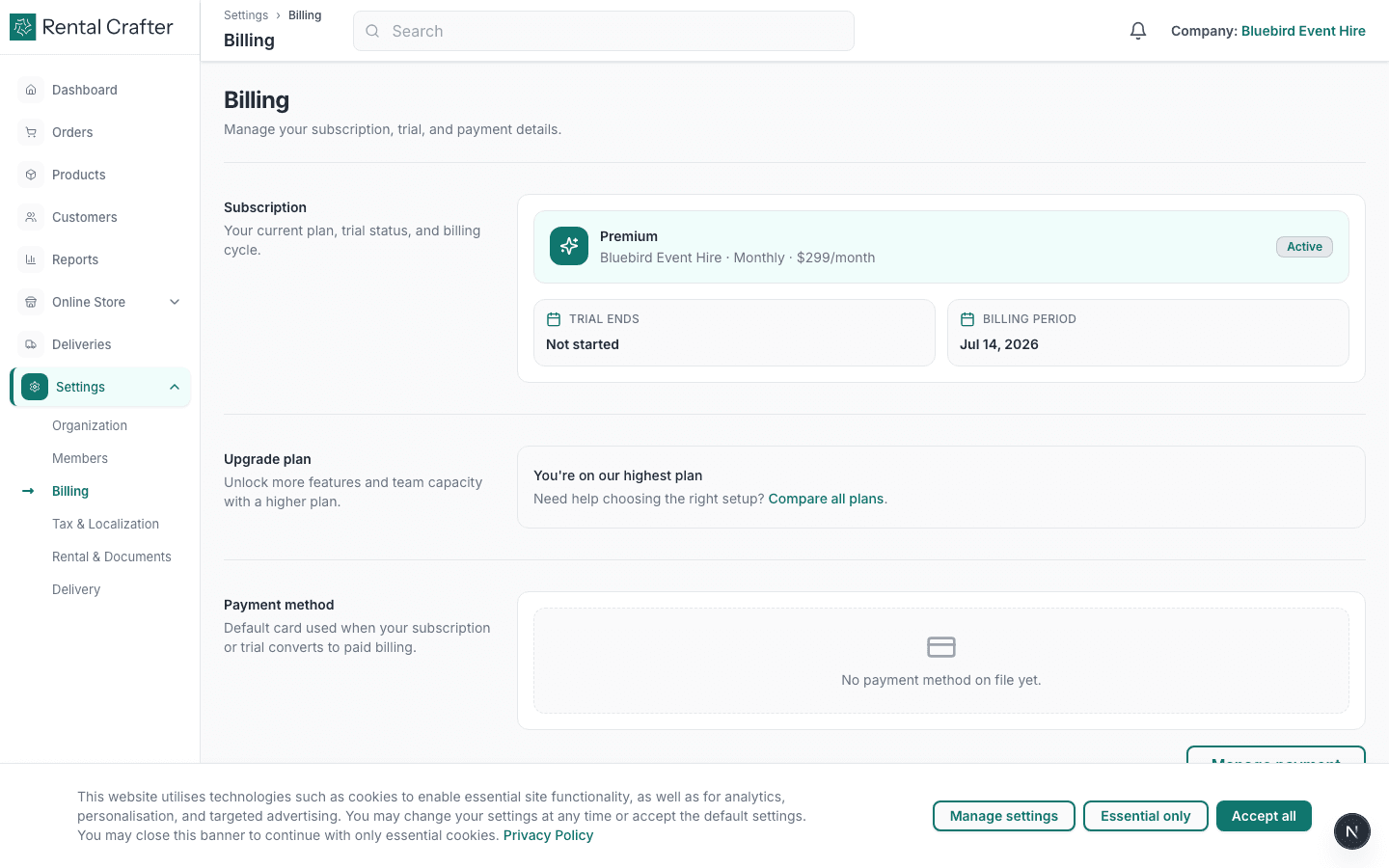
Manage your RentalCrafter subscription
Settings → Billing shows your current plan, trial end date, and renewal options. Upgrade or downgrade before your next billing cycle. Cancelling stops renewal but you keep access until the period ends.
- 2
Connect Stripe for customer payments
Click Connect with Stripe and complete the onboarding flow. Once connected, you can send checkout links from orders for deposits and balances. Funds settle to your Stripe account per Stripe's payout schedule.
Tip: You can explore inventory and orders without Stripe, but payment links require a connected account. - 3
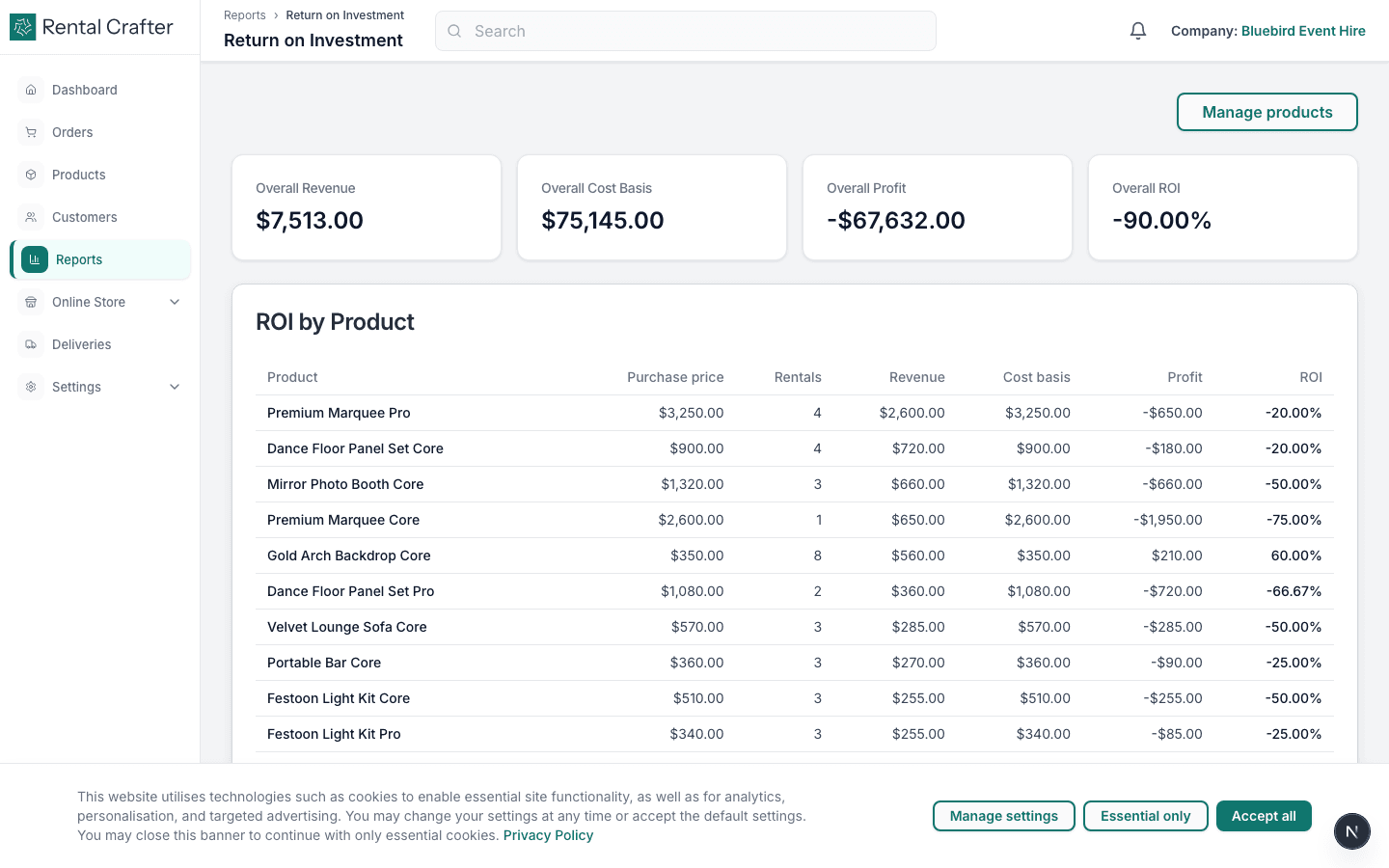
Track ROI (Pro and Premium)
Reports → ROI shows revenue against purchase costs when you have recorded purchase prices on products. Useful for understanding which items earn the most.
Troubleshooting
Stripe Connect onboarding is incomplete.
Return to Settings → Billing and click Continue setup. Stripe may require additional business verification.
A customer payment succeeded but the order still shows unpaid.
Refresh the order page. If status does not update within a few minutes, check the Stripe dashboard for the payment and contact support with the order ID.
Related guides
Need hands-on help?
Email info@rentalcrafter.com or open a support ticket from Help & Support in your dashboard.