10 min read
Publish your online store
Configure branding, share your store URL, and organise products into collections.
- 1
Configure store basics
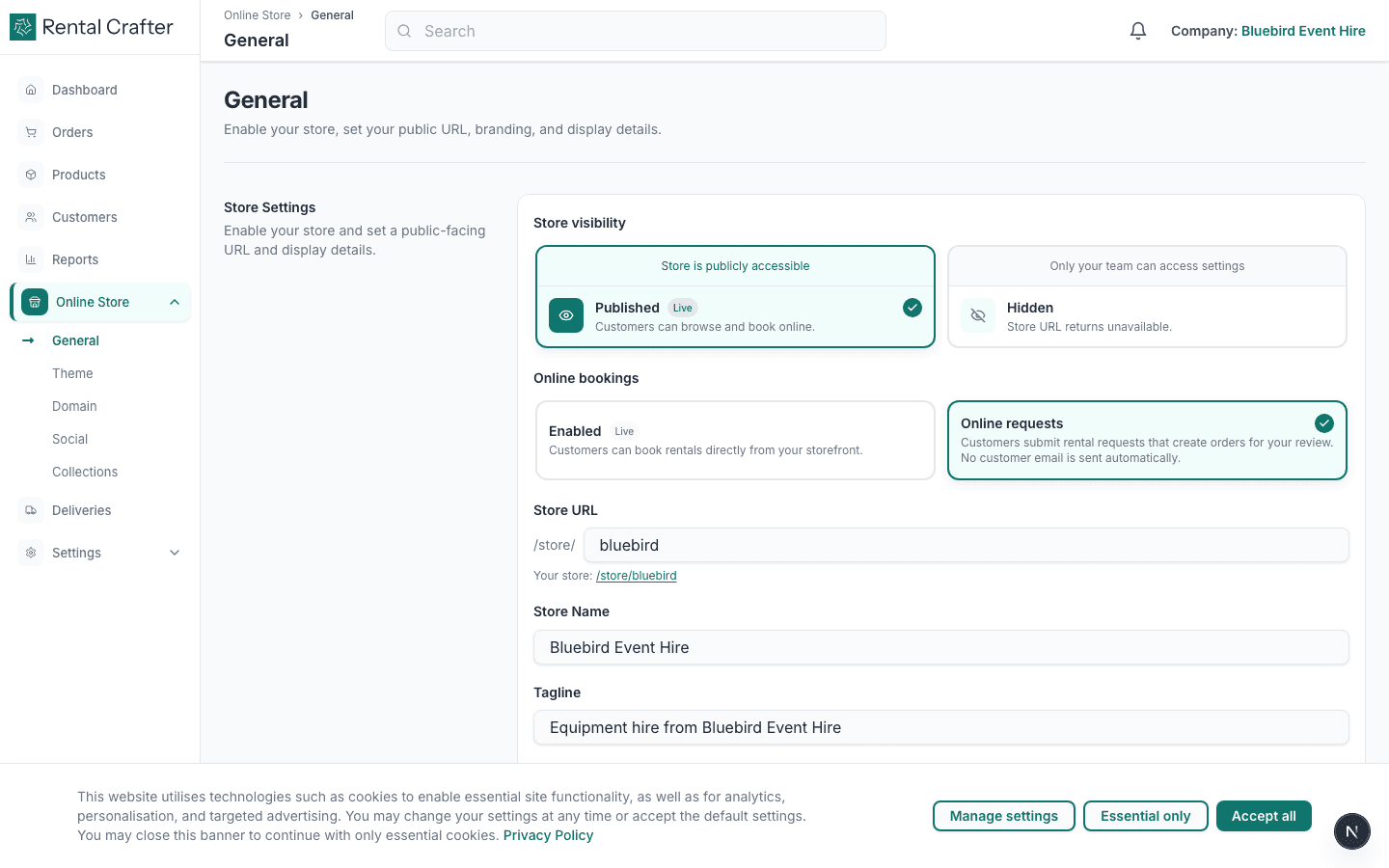
Open Online Store → General. Set your store display name, upload a banner image, and choose whether the store is published. Unpublished stores are only visible to your team.
- 2
Choose a theme
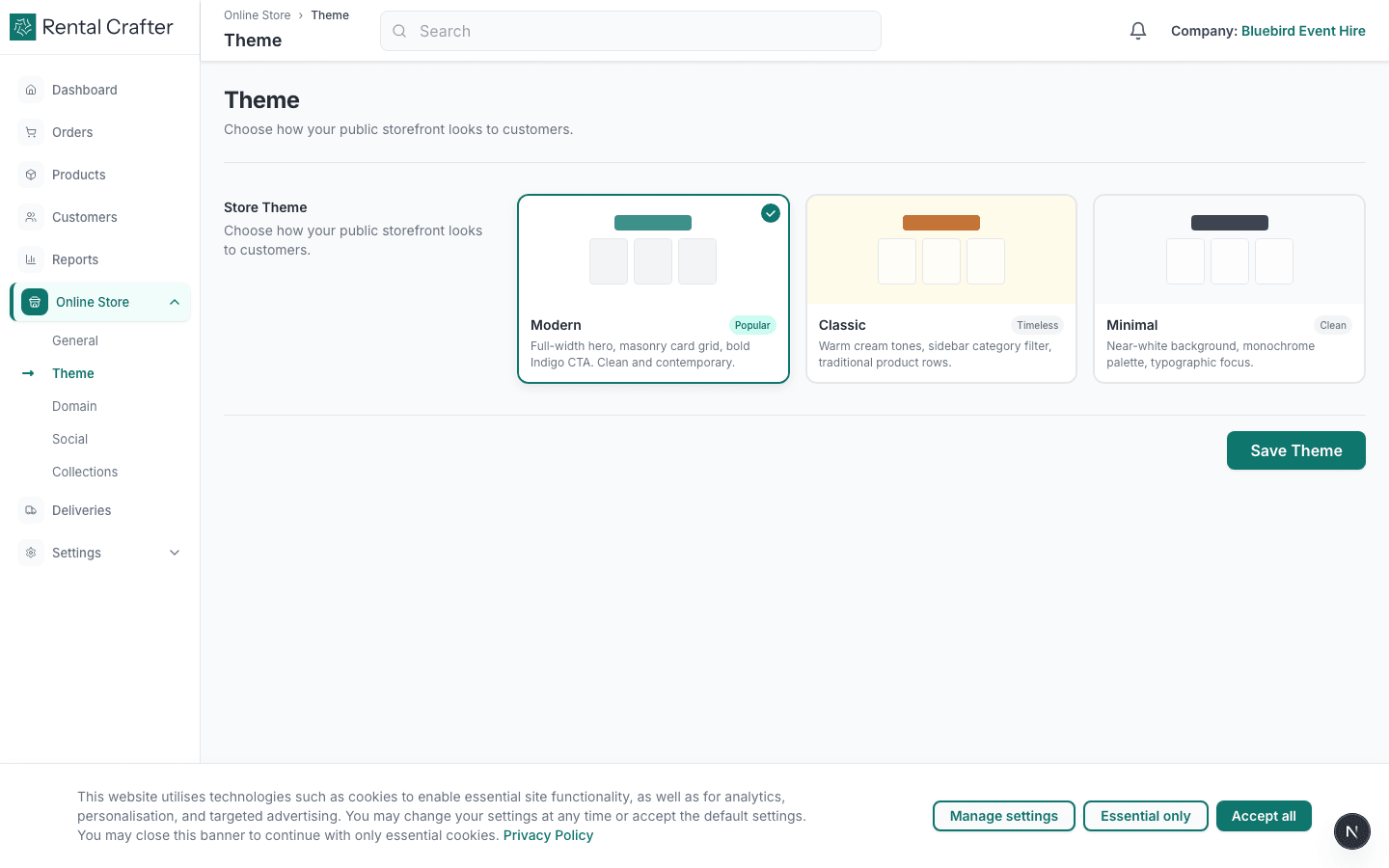
Under Online Store → Theme, pick Modern, Classic, or Minimal. Preview how your catalogue looks before saving. Theme changes apply instantly to your public store.
- 3
Add social links and domain
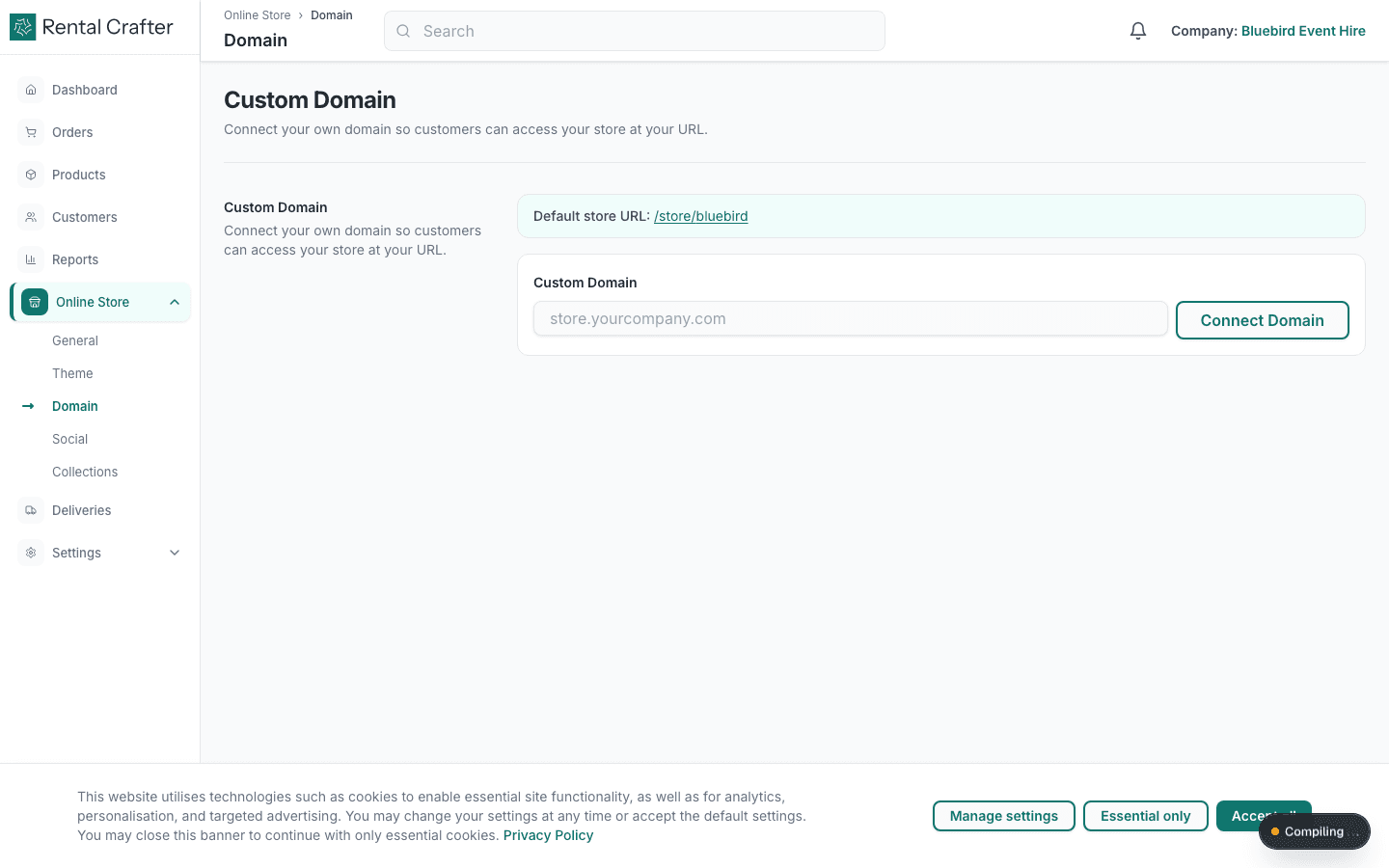
Link Instagram, Facebook, or your website under Social. On Pro and Premium plans, connect a custom domain under Domain so customers see your brand URL instead of the default RentalCrafter link.
- 4
Create collections
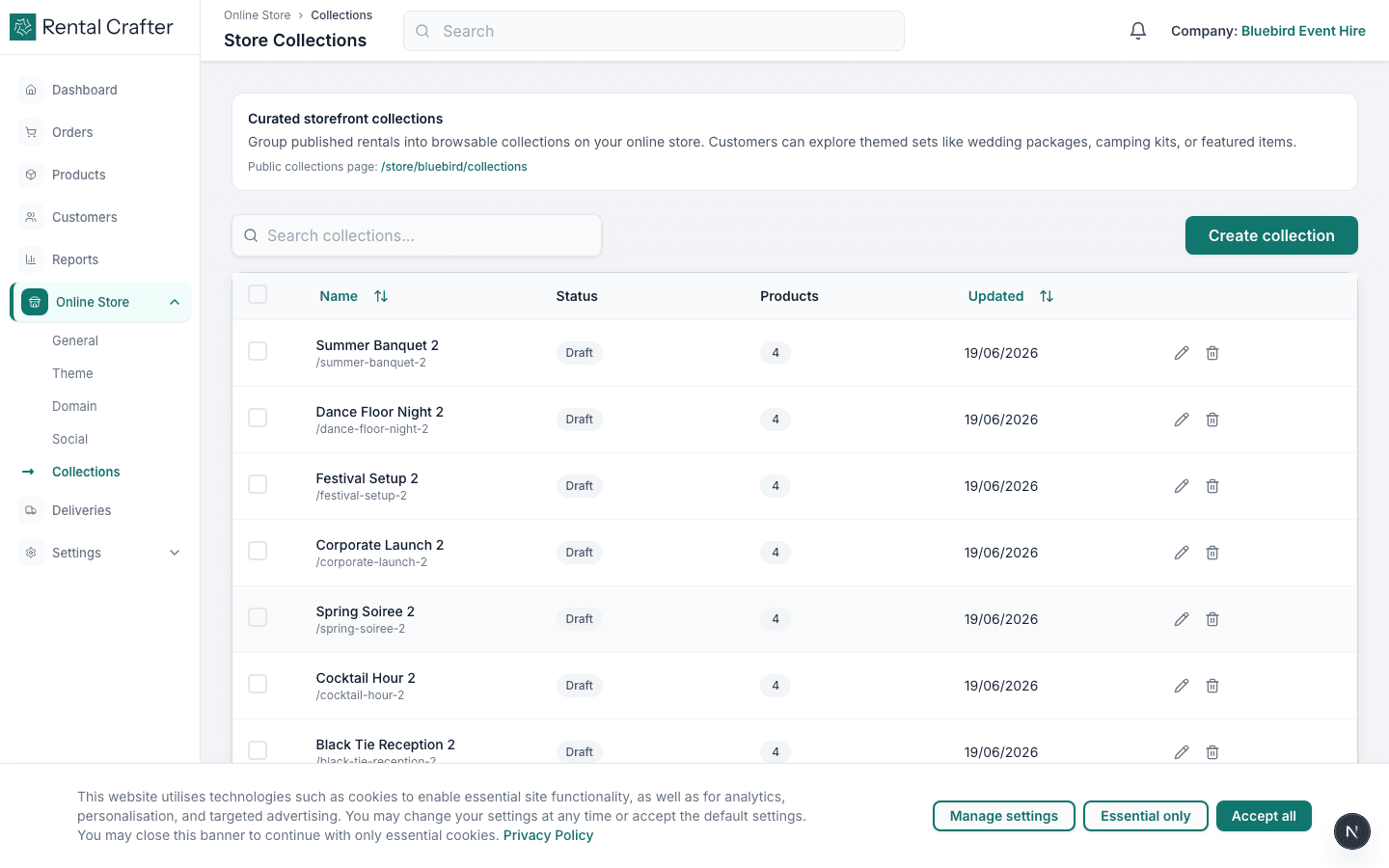
Group products into collections — e.g. "Wedding Packages" or "Winter Sale". Collections appear on your store homepage and help customers browse faster.
- 5
Share your store URL
Copy your store link from Online Store settings and share it on your website, social media, or email campaigns. Customers browse products without needing a RentalCrafter account.
Tip: Online checkout and contract flows still originate from orders you create or approve — configure workflow in Settings → Rental & Documents.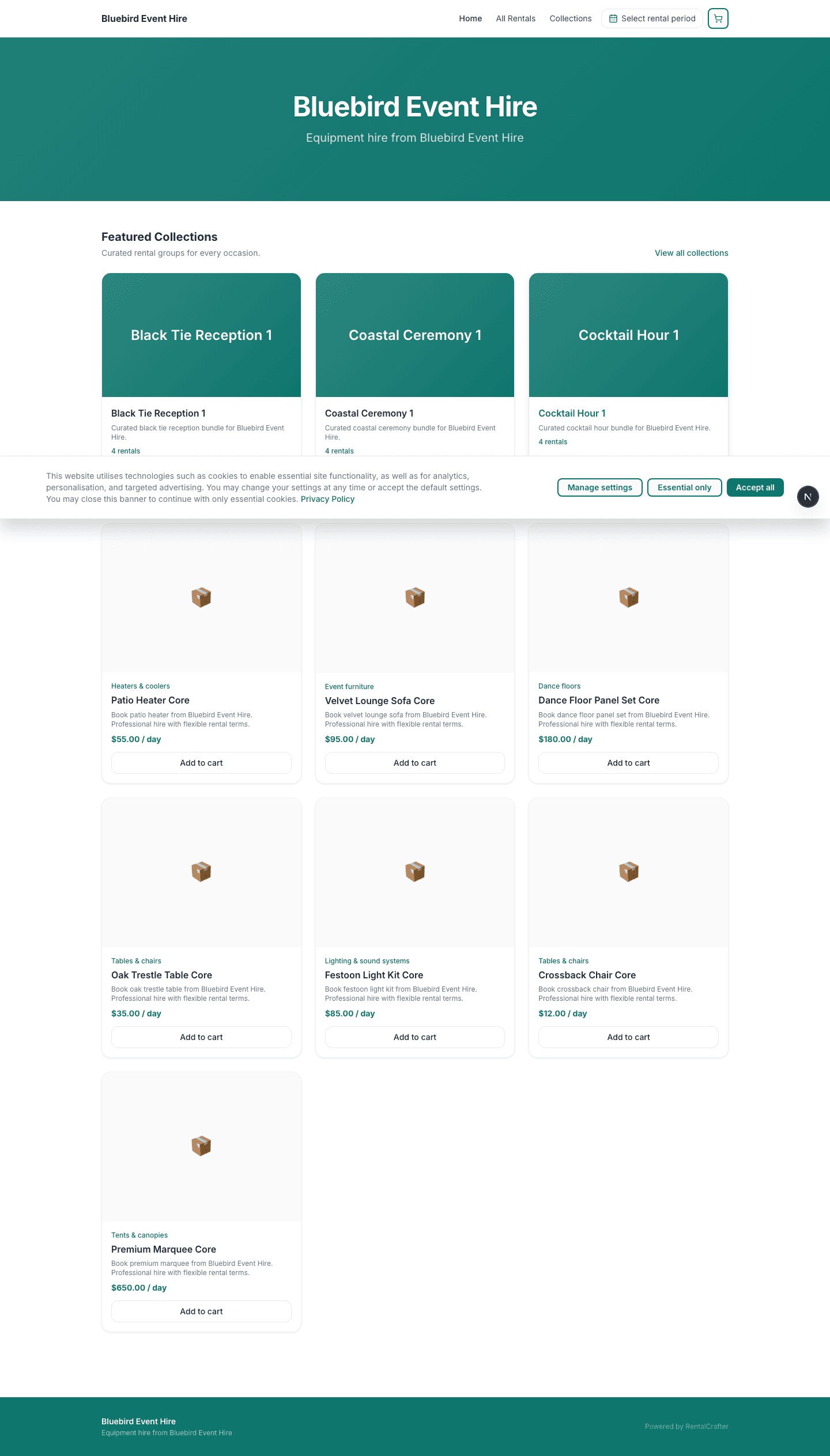
Troubleshooting
My store shows no products.
Confirm the store is published, products are not archived, and your plan includes the online store feature.
Custom domain will not verify.
DNS changes can take up to 48 hours. Double-check the CNAME record matches the value shown in Domain settings.
Related guides
Need hands-on help?
Email info@rentalcrafter.com or open a support ticket from Help & Support in your dashboard.