8 min read
Getting started with RentalCrafter
Create your account, verify your email, and complete organisation setup so you land on a ready-to-use dashboard.
Open in RentalCrafter- 1
Choose a plan and register
Visit the Pricing page and pick Essential, Pro, or Premium. Every plan includes a 14-day free trial. On the registration form, enter your full name, work email, and a strong password, then click Create account.
Tip: Use a work email you check regularly — verification and order notifications are sent there.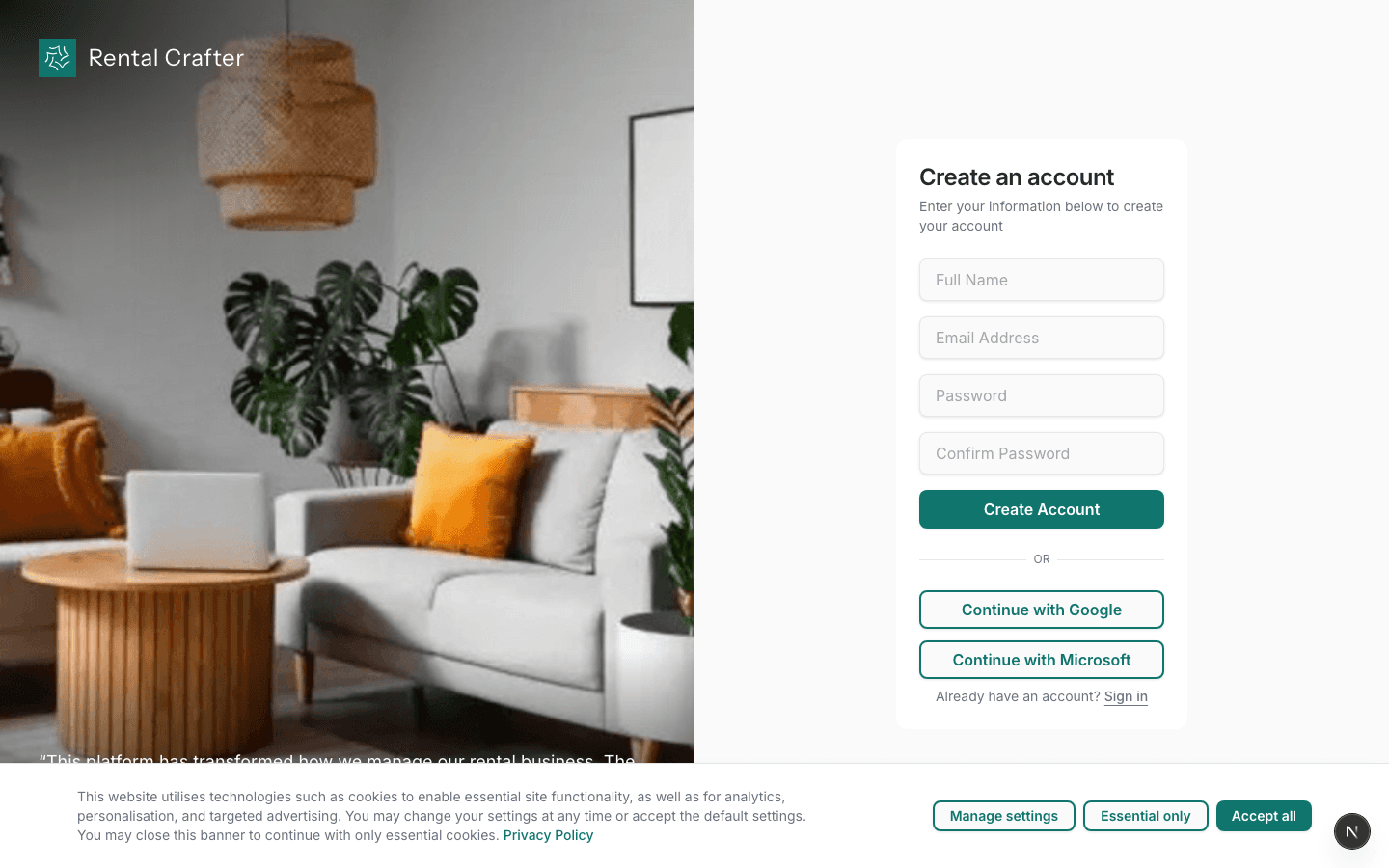
- 2
Verify your email address
Check your inbox for a confirmation email from RentalCrafter. Click the link to verify, then sign in at /login. If you try to sign in before verifying, you will be redirected to the confirmation screen.
Tip: Did not receive the email? Check spam, wait a few minutes, or use the resend option on the confirmation page.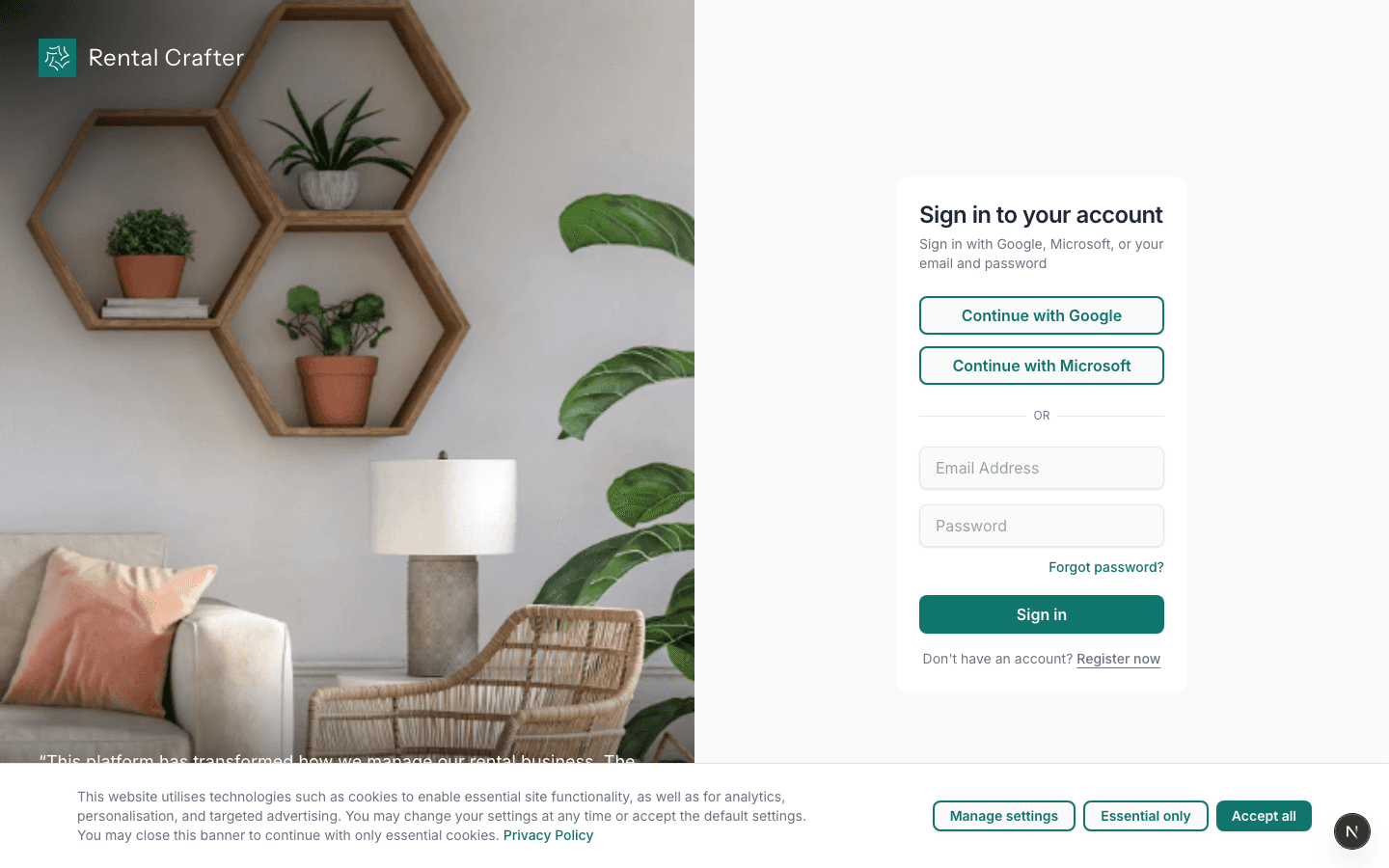
- 3
Complete organisation setup
After your first sign-in, you are guided through organisation setup. Enter your business name, choose your rental category (e.g. party equipment, AV, vehicles), and confirm your plan. RentalCrafter auto-detects your timezone, currency, and date format from your browser.
Tip: You can refine legal name, address, and tax details later under Settings → Organization.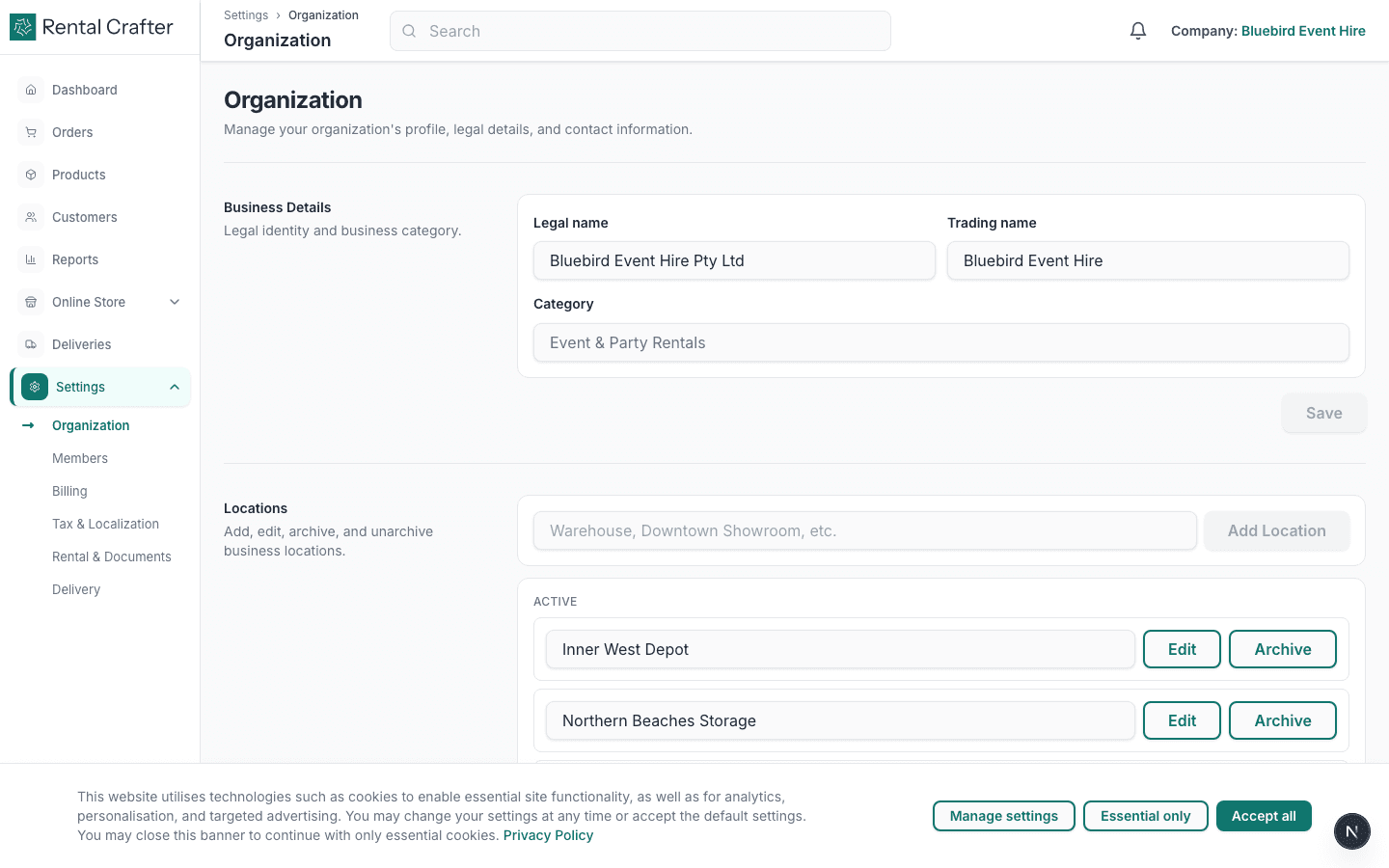
- 4
Explore your dashboard
Once setup is complete, you arrive at the dashboard. The sidebar gives you quick access to Orders, Products, Customers, Online Store, Deliveries, and Settings. Start by adding a product, then a customer, then your first order.
Tip: Stuck after setup? Follow the onboarding checklist on the Documentation home page.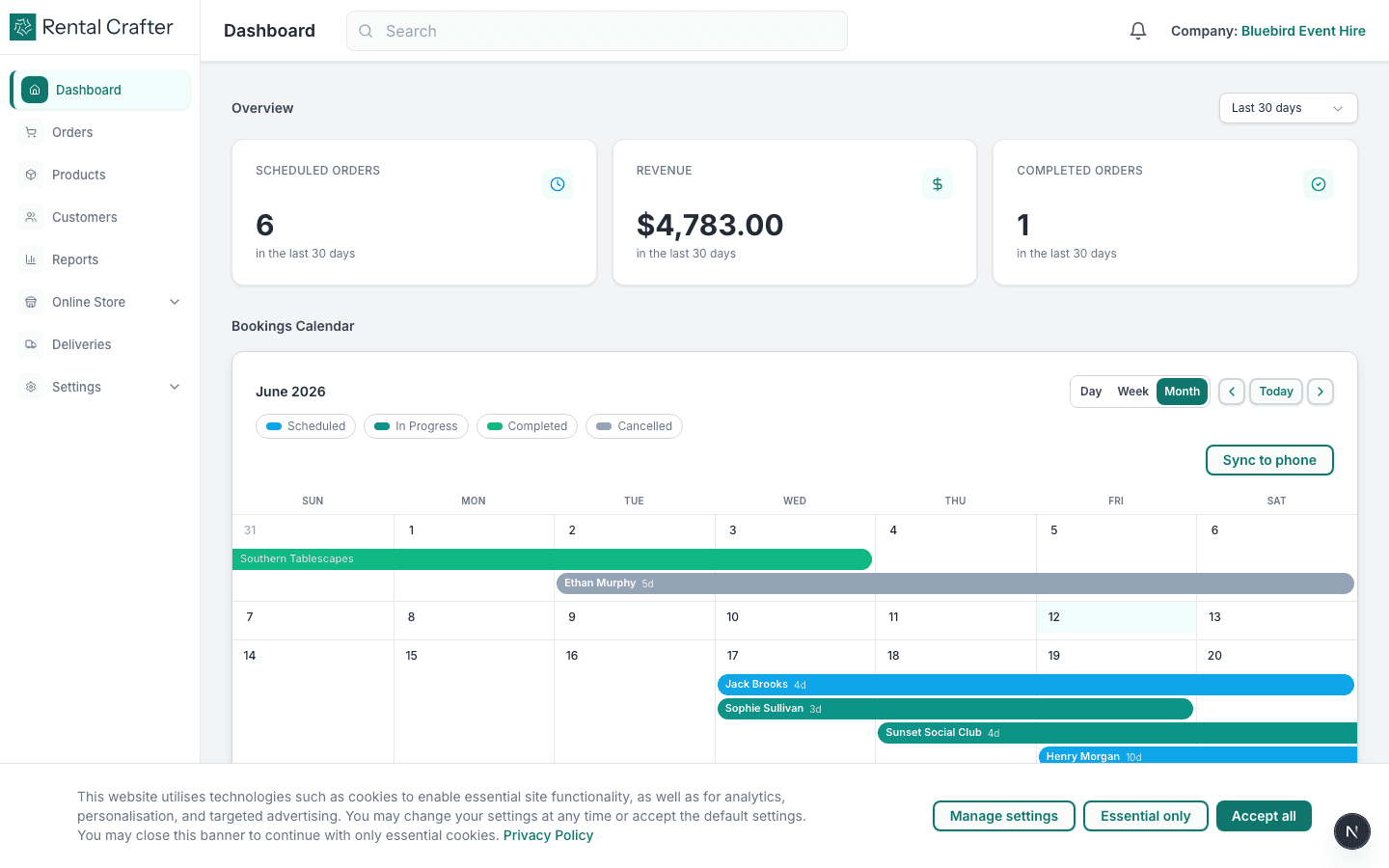
Troubleshooting
I signed in but keep getting sent back to organisation setup.
Your workspace may not have an active plan selected yet. Finish the organisation form or contact support if you were invited to an existing team.
I was invited to a team but see a setup screen.
Open the invitation link from your email instead of registering a new account. Invited users skip organisation creation.
Related guides
Need hands-on help?
Email info@rentalcrafter.com or open a support ticket from Help & Support in your dashboard.